1. Trim & Autopilot Following
TelemFFB can move your stick and pedals in response to the simulator’s trim and autopilot, so that trimming the aircraft relieves control pressure and relocates the stick’s resting position - just like in a real aircraft.
Because neither MSFS nor X-Plane has any concept of force feedback, they treat any axis movement as a deliberate control-surface command. If TelemFFB simply let the stick move with the trim and reported that movement to the sim, the sim would read it as additional elevator input stacked on top of its own trim, and the aircraft would pitch far more than it should. To prevent this, TelemFFB controls the axis position the sim receives, delivering only a fraction of the physical stick’s movement. Getting that fraction right is what the settings below (and the automatic calibration) are for.
Prerequisite: Axis Control
Trim and autopilot following require Axis Control - TelemFFB must be the source of the axis positions the sim receives. Set that up first, including unbinding your axes in MSFS. See Axis Control & Spring Modes.
Note
Trim and autopilot following in MSFS should be considered an advanced feature. It works well across a wide range of aircraft but often benefits from per-aircraft tuning of the elevator gains - see Automatic Trim Calibration.
Helicopters
This page describes the fixed-wing implementation. Helicopter cyclics have a simpler trim-following model that reads the rotor trim instead - see Cyclic Trim Following.
1.1 Enabling the Feature
Enable Axis Control (telemffb_controls_axes), then in the sub-settings enable Trim Following and/or Autopilot Following as desired.
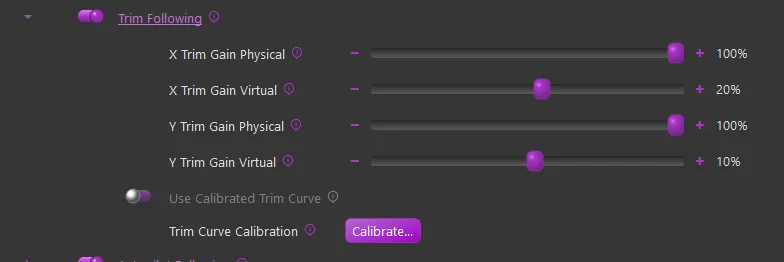
1.2 Trim Following Gains
Trim following is tuned with two gains per axis (X = aileron, Y = elevator):
-
X / Y Trim Gain Physical - how far the physical stick moves in response to trim. At 100%, full trim travel moves the stick through its full travel. This is a feel setting - it controls how much the stick relocates as you trim.
-
X / Y Trim Gain Virtual - how much of that physical movement is passed on to the simulator. At 20%, only 20% of the stick’s trim-induced movement is reported to the sim as control input. This is the setting that determines whether the aircraft pitches when you trim - if it is too high the nose follows the trim too strongly, too low (or too negative) and it fights the trim.
Let TelemFFB measure it
Do not tune the elevator values manually — run the Automatic Trim Calibration. TelemFFB flies the aircraft briefly, measures its actual trim response, and computes the correct elevator gain — or a full calibrated curve where the response is not linear. The aileron and rudder gains can usually stay at their defaults.
1.3 Calibrated Trim Curve (elevator only)
Some aircraft do not respond to trim in a simple, straight-line fashion, and a single Y Trim Gain Virtual value cannot hold the nose steady across the whole trim range. For these, TelemFFB can measure the aircraft’s actual trim response and store a curve instead of a single value.
-
Use Calibrated Trim Curve - when enabled, the calibrated curve is used for the elevator axis in place of the static Y Trim Gain Virtual value. Leave it off to use the single value.
-
Trim Curve Calibration → Calibrate… - opens the calibration tool, which flies the aircraft and measures the curve for you. See Automatic Trim Calibration.
Note
If you enable Use Calibrated Trim Curve without first running a calibration for that aircraft, TelemFFB will raise an error notification and fall back to the static gain. Run the calibration, or turn the option off.
1.4 How Trim Following Works
Each time you trim, three things happen:
-
TelemFFB reads the new trim position from the simulator.
-
The stick’s spring center relocates by the trim amount, scaled by the physical gain. If you were holding pressure against the spring, that pressure relieves as the center moves toward your hand - exactly what trimming does in a real aircraft.
-
An axis value is sent to the simulator. Your own stick input passes through normally, but the trim-induced part of the stick’s movement is first scaled by the virtual gain - or replaced by the calibrated curve. This is the critical step: the simulator still applies its own trim internally, so if the stick’s full trim movement were reported as control input, it would stack on top of the sim’s trim and the aircraft would pitch away from where you trimmed it. The virtual gain delivers only the fraction that keeps the two in balance.
When the balance is right, trimming while holding the stick still does not change the aircraft’s pitch: the force in your hand relieves and the nose stays put. Where that balance point sits differs per aircraft - which is exactly what the Automatic Trim Calibration measures.
Note
Some aircraft report trim in a way that does not map cleanly to a position. If elevator trim following behaves erratically, try the use axis position instead of trim position toggle.
1.5 Autopilot Following
With autopilot following enabled, the physical controls move with what the autopilot is flying:
- The elevator follows through the trim value, because autopilots fly pitch with elevator trim.
- The aileron and rudder follow the control-surface deflection the autopilot commands.
- The movements are dampened to prevent oscillation in turbulence or on aircraft with very sensitive controls.
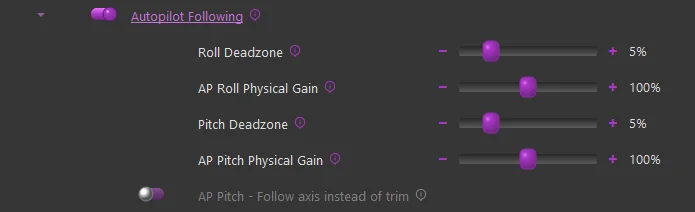
Two settings govern how your hands and the autopilot share the controls:
- Deadzone - you must move the control further than this before your input is sent to the sim. This lets the autopilot fly without your resting hand fighting it.
- Gain - the ratio of physical control movement to in-sim control movement once you do move past the deadzone.
Note
If an aircraft becomes unstable with autopilot following engaged and tries to roll inverted, enable the Invert Aileron Autopilot Axis option.
Legacy manual tuning
Before automatic calibration existed, users tuned the gains manually. The procedure and suggested starting values appear in Manual Trim Tuning (Legacy).